
When it comes to websites, most people have heard of a cookie, but what exactly are they?
Cookies are text files held on your computer that store information about you and the website you’re visiting. The website sends the cookie to your computer, which stores the information, letting the site remember certain things about you as you browse to a different page or start a new session.
What Do Cookies Do?

Cookies store information about your activity on a website. For example, a cookie remembers your login details, so if you close your browser and reopen it, you’re still logged in. They also remember what you’ve placed in your cart while you continue browsing; without cookies, your cart would empty every time you changed pages.
Types of Cookies
There are several types of cookies, each with its own function:
Session Cookies
Temporary cookies deleted when you close your web browser. Since they don’t carry information from one visit to the next, you need to log in again each time. Common uses include shopping carts, remembering you from page to page, and playing multimedia content.
Persistent Cookies
Saved in your browser until you delete them, or until your browser deletes them when they expire. Common uses include language selection, authentication, favourites, and internal site bookmarks.
Functionality Cookies
Allow a website to remember choices you’ve made, creating an experience tailored to you, for example, remembering your language or region selection.
Performance Cookies
Collect anonymous information on how a website is used, helping to create a better user experience, for example, tracking the most-used pages and any error messages.
Advertisement Tracking Cookies
Third-party cookies used by advertisers to tailor ads to you, based on the types of websites your browser visits.
Affiliate Tracking Cookies
Stored on your browser when you click an external link from one website to another’s product page, letting the original site earn a commission if you make a purchase.
If you use affiliate or advertisement tracking cookies, you can include the relevant clauses using our privacy policy generator.
How Secure Are Cookies?
Cookies alone don’t pose any threat to your security; they simply store information given to a website. However, some “malicious cookies” track and store your online activity without your knowledge, and this information can potentially be made available to third-party websites.
Managing Cookies in Your Browser
You may want to delete cookies from your browser at some point. Before you do, be aware that clearing all cookies will mean sites that normally recognise you will forget you, and you may need to log in again.
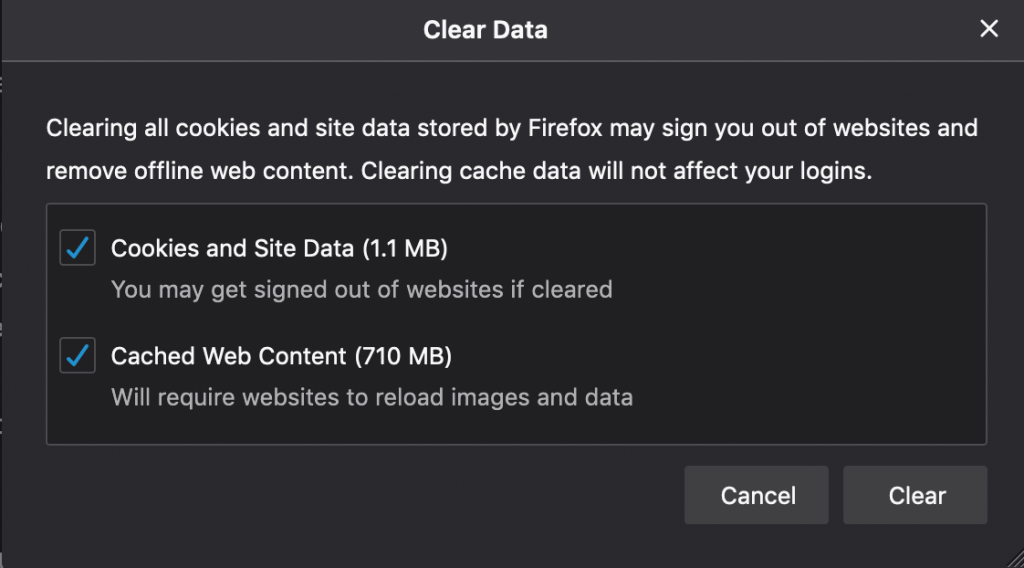
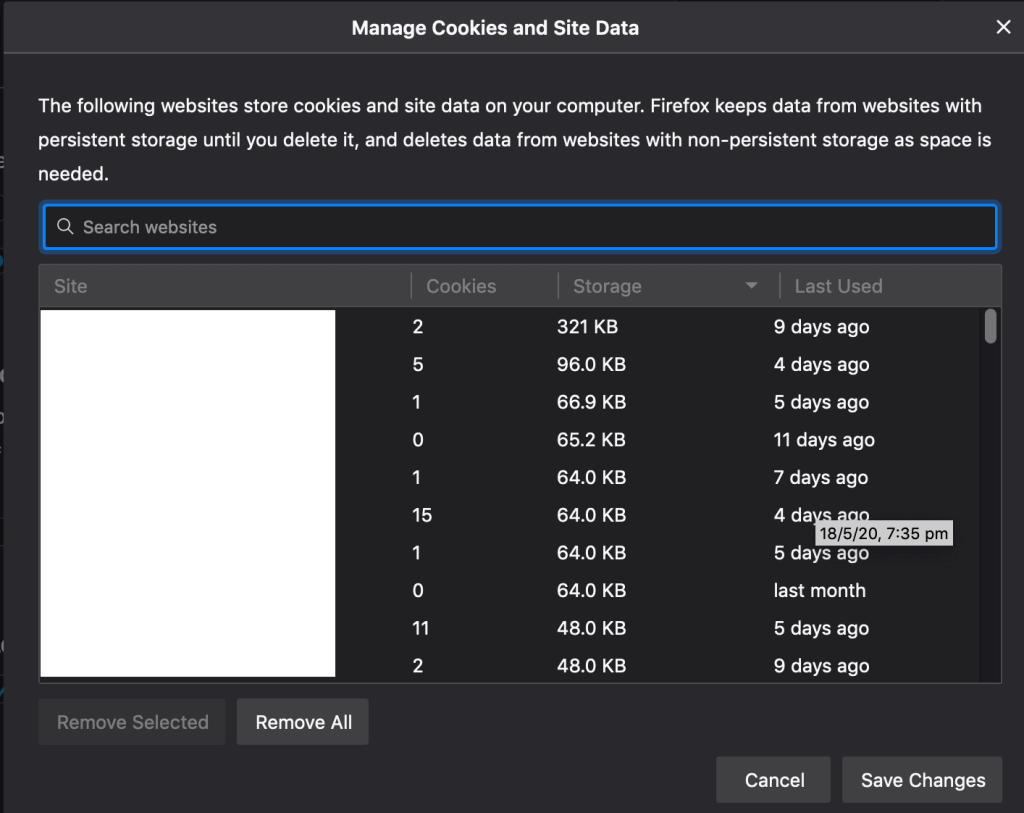
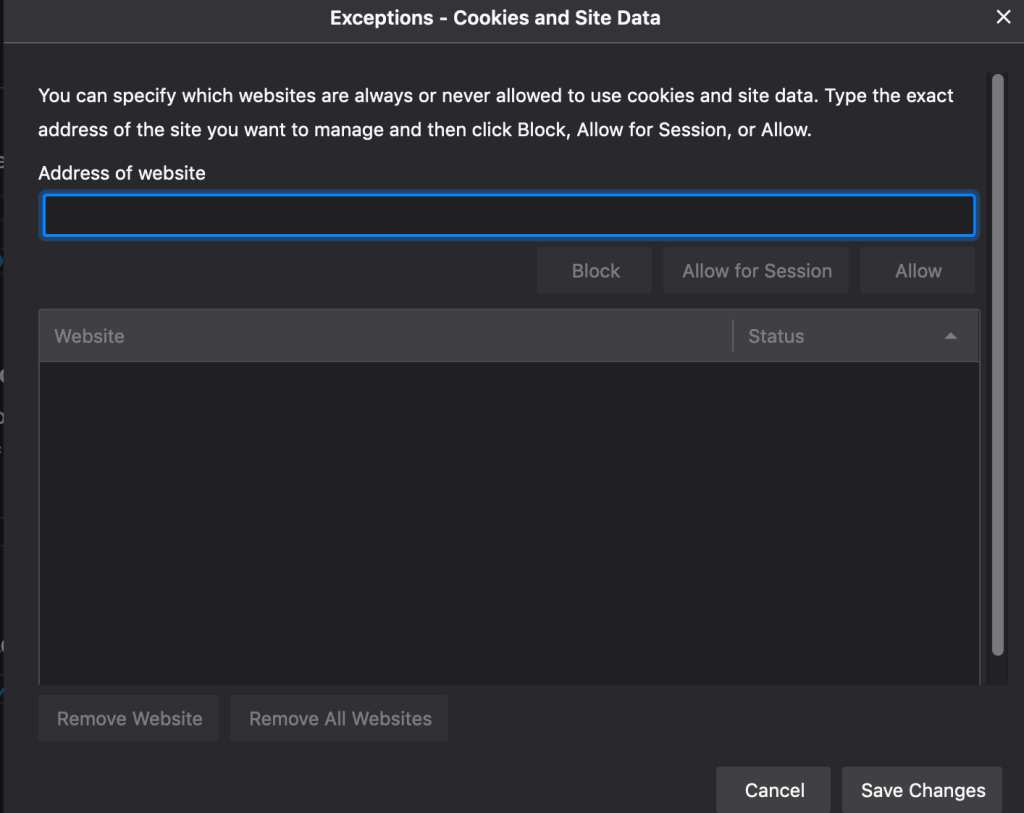
Every major browser (Chrome, Firefox, Safari, Edge, Internet Explorer) has a way to manage or delete cookies, usually somewhere in its settings or preferences menu under a heading like “Cookies and Site Data”. From there you can typically choose to clear all cookies, manage which sites’ cookies to keep or delete individually, or set permanent permissions for specific sites. If you can’t find the exact setting for your browser, a quick search for “[your browser] manage cookies” will point you to the right place.
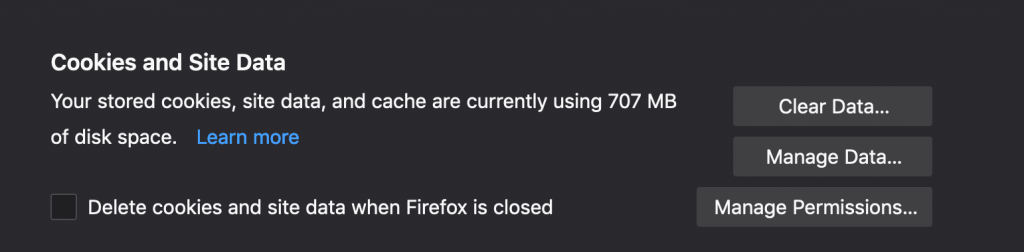 Image of Firefox Data preferences
Final Words
In most cases, cookies are user-friendly and harmless; they make your online experience smoother and easier. If you’re ever concerned you may have picked up some bad cookies, a quick clean-up is a good idea.
The information in this article is for informational purposes only and should not be construed as legal advice on any matter, and does not create a lawyer-client relationship.